How to Check a PCB Pick-and-Place File Before Assembly
A pick-and-place file can import without errors and still put components in the wrong locations or orientations. Before sending it to the assembler, check the reference designators, units, origin, board side and rotation against the BOM and assembly drawing for the same revision. If the rotation convention is unfamiliar, ask the assembler to confirm how its import software reads the file before changing any values.
This check belongs after export and before machine setup. For the broader document package, use the PCB assembly file checklist. The steps below address errors inside an existing centroid, component placement list (CPL) or position file.
1. Check units, origin and board-side conventions
Record the CAD revision, export settings, units, origin and side naming in the release notes. Open the board outline and placement data together in a viewer that supports the exported format. Check a distinctive connector and two widely separated components rather than relying on a dense central IC cluster.
A uniform displacement usually points to an origin mismatch. A proportionally enlarged or reduced pattern suggests a units problem. A mirrored pattern may come from the bottom-side viewing or coordinate convention. Confirm the cause before changing coordinates. Then either regenerate the export with the agreed settings or record the coordinate transformation approved for import.
KiCad’s position-file documentation describes export controls for units, placement origin and bottom-side coordinates. Include those settings with the CSV so the assembler knows how to interpret its coordinates.
2. Reconcile every reference designator with the intended build
Compare the reference designators in the BOM, CPL and assembly drawing. Investigate missing references, duplicates and components marked not fitted. The lists will not always match exactly: through-hole parts, fiducials and customer-installed components may be handled separately. For each exception, record the reason and who is responsible for the relevant operation.
A grouped BOM row such as R1-R4 represents four placements, not one. Expand grouped references for reconciliation and check that the quantity agrees. Also inspect spreadsheet exports for stripped leading zeros, altered separators or scientific notation in identifiers. Preserve the original CAD export alongside any agreed conversion.
3. Verify orientation against pins and pads, not package text
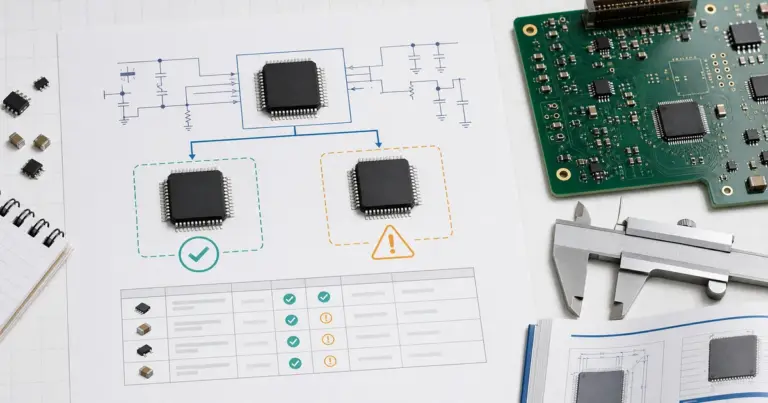
Choose asymmetric parts: an IC with a documented pin-one location, a polarized component and a keyed connector. Compare the exact manufacturer package drawing with the footprint pad numbering and the assembly view. A molded dot or printed stripe is only useful after its meaning has been confirmed for that component.
A rotation value of zero does not mean the same physical direction in every library or assembly system. The receiving preview must show the correct pin-to-pad relationship. Bottom-side parts deserve their own check with the viewing direction stated. Do not apply a blanket 180-degree correction simply because the bottom view looks unfamiliar.
A small reconciliation example
In this worked example, coordinates are in millimeters. The assembly drawing places J1 at X=10.0, Y=8.0; U2 is on the bottom side and its imported orientation needs checking; R9 is absent from the released BOM.
| Reference | X / Y | Side / rotation | Review outcome |
|---|---|---|---|
| J1 | 15.0 / 8.0 | Top / 0 | Investigate the X mismatch: the drawing specifies 10.0. |
| U1 | 30.0 / 18.0 | Top / 90 | Verify pin one in the receiving preview. |
| U2 | 34.0 / 22.0 | Bottom / 90 | Hold until bottom-side interpretation is confirmed. |
| C1 | 24.0 / 17.0 | Top / 0 | Check package and reference against BOM. |
| C2 | 24.0 / 20.0 | Top / 0 | Check package and reference against BOM. |
| D1 | 19.0 / 10.0 | Top / 180 | Check cathode marking against pad identity. |
| R1 | 28.0 / 14.0 | Top / 0 | Confirm fitted status for this configuration. |
| R9 | 28.0 / 16.0 | Top / 0 | Resolve missing BOM reference before release. |
One displaced component does not establish a global origin error. Check other references before deciding whether J1 has a local placement problem or the entire export uses another datum.
4. Identify the approved file and record any changes
Record the final filename, revision, export date and any approved exceptions. Keep the assembler’s import preview or equivalent review record with that release. If someone edits placement values, issue a new controlled file and repeat the affected checks. Approval should identify a specific file, rather than refer to “the latest attachment.”
For SMT PCB assembly, send the CPL together with the BOM, board data and assembly drawing. A checked CPL reduces interpretation work; it does not replace the assembler’s machine setup and first-article checks.
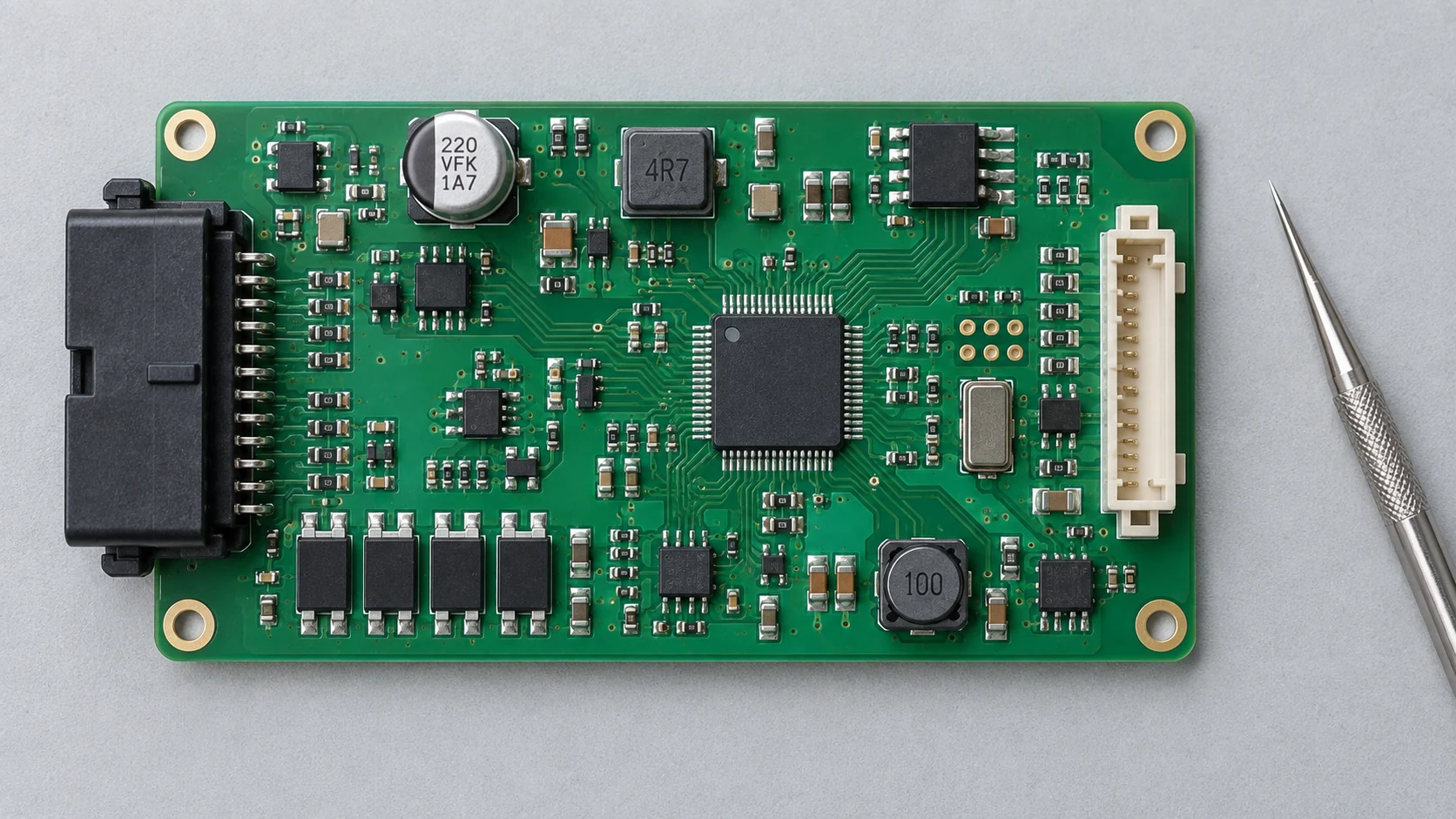
Cover image: AI-generated editorial illustration, not a production record or an acceptance reference.